






If you have Microsoft 365 Copilot and you opened Word, Excel, or PowerPoint recently, you may have noticed something different. The Copilot experience you were used to, the one that answered questions and offered suggestions you could choose to accept or ignore, has been replaced with something more capable.
As of April 22, 2026, Microsoft made Agent Mode the default Copilot experience across all three apps. It rolled out automatically. No new license required, no extra cost. It is just there now, and it works quite differently from what came before.
What Actually Changed
The old Copilot was essentially a smart assistant that lived in a side panel. You could ask it questions, have it summarize content, or generate a draft you would then paste in and edit yourself. Useful, but you were still doing most of the work.
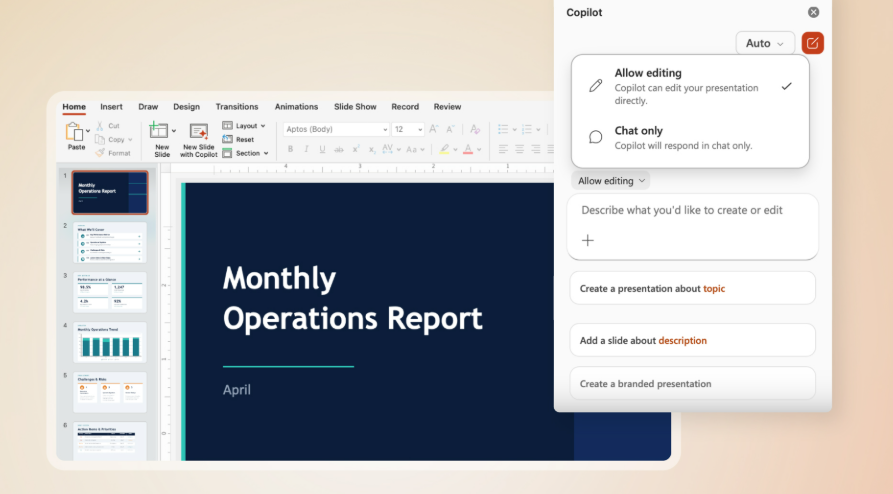
Agent Mode shifts that dynamic. Instead of suggesting what you should do, Copilot now does it. You describe a goal in plain language, and Copilot works through a sequence of steps to complete it directly inside your document, spreadsheet, or presentation without waiting for you to execute each one manually.
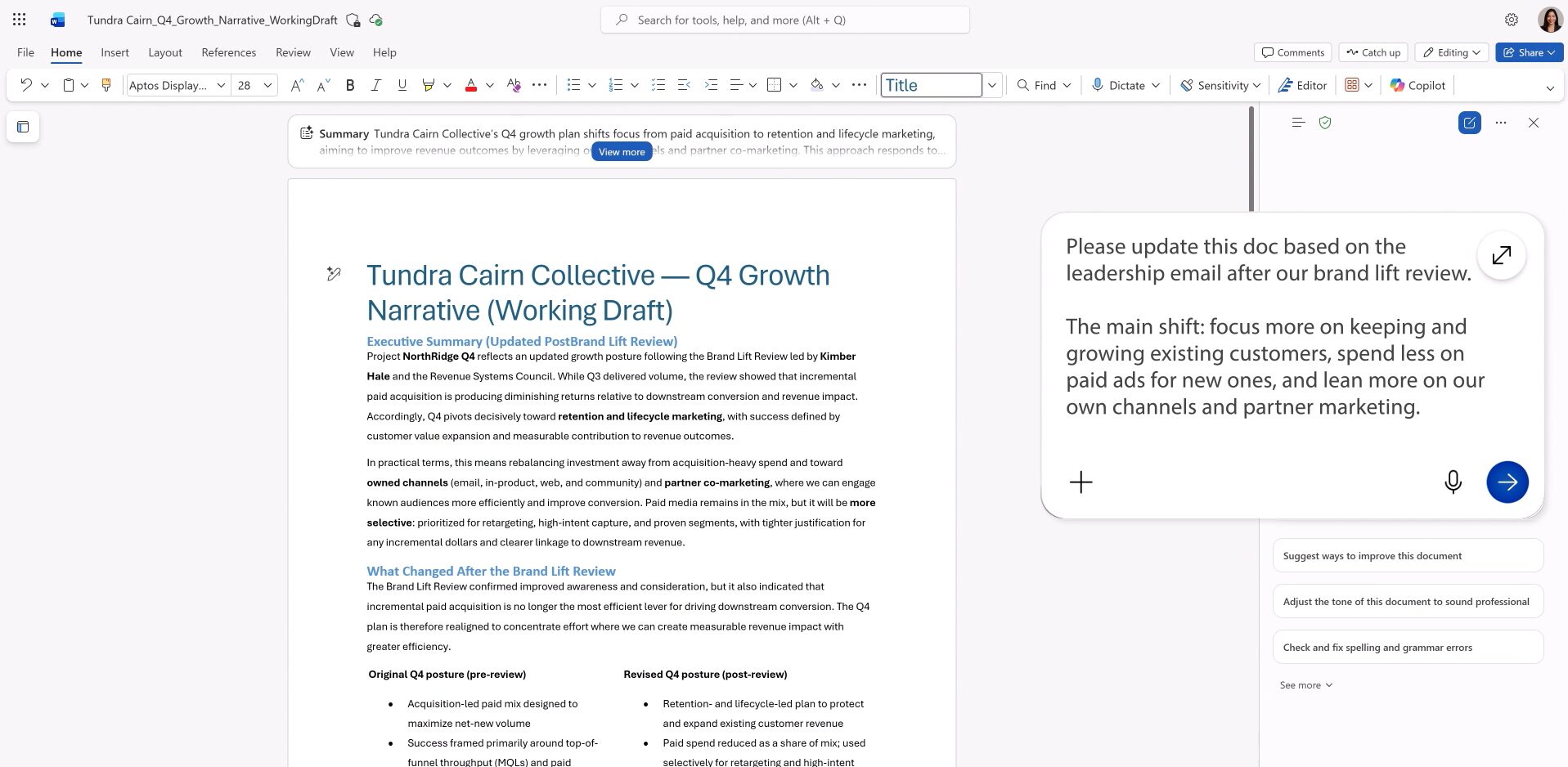
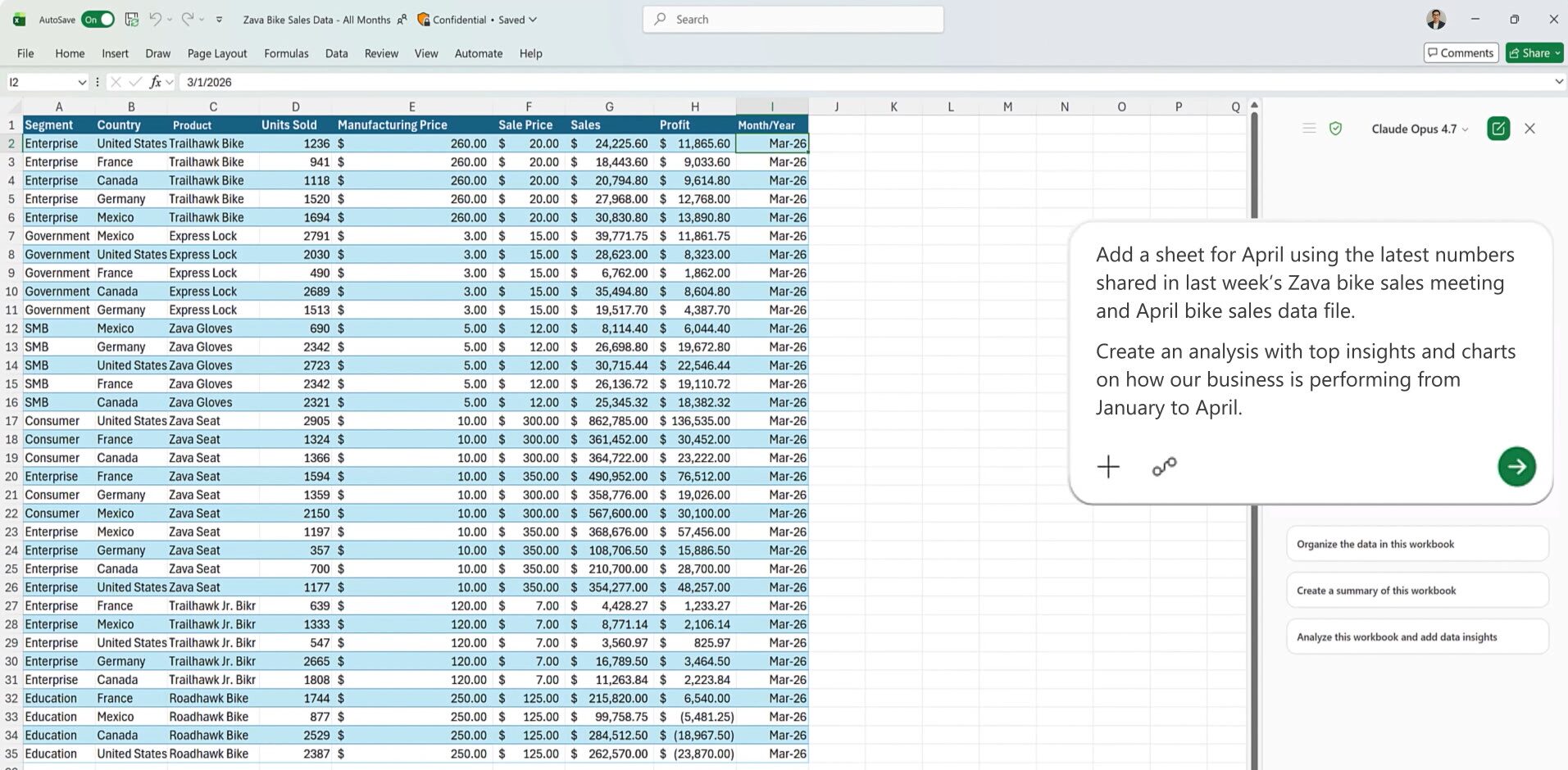
In Word, that means restructuring a document, changing its tone, applying formatting, or adding headings based on a single instruction. In Excel, it means inserting formulas, building pivot tables, generating charts, and transforming data from a description of what you want the output to look like. In PowerPoint, it means updating an existing deck with new data, applying your company’s brand template, or rebuilding slides around a fresh narrative.
You can watch what it is doing as it works. A sidebar shows each step in real time, like a checklist being completed, so you always know where things stand.
This Is a Meaningful Shift, Not a Minor Update
It is worth pausing on what this actually represents. For years, AI tools in productivity software have been helpful but incremental. They saved a few clicks here and there. Agent Mode is different in kind, not just degree.
The gap between describing what you want and having it done has effectively closed for a wide range of common tasks. Monthly report updates, data analysis workflows, slide deck refreshes, document restructuring, these are things that used to take meaningful chunks of time. They are now tasks you can hand off with a prompt and review when complete.
Microsoft’s own early data backs this up. Since the rollout began, engagement, retention, and satisfaction across all three apps have increased. The company also reported a 67% increase in Excel engagement specifically, which tracks, given how much time people spend on repetitive spreadsheet work.
Who Gets It and What You Need
Agent Mode is available to anyone with one of the following:
- Microsoft 365 Copilot (the business add-on at $30 per user per month)
- Microsoft 365 Premium
- Microsoft 365 Personal or Family
If your organization already has the Copilot add-on active, nothing additional is required. The update rolls out automatically through standard Microsoft 365 update channels. If you are on Current Channel or Monthly Enterprise Channel and your apps are up to date, you already have it.
One practical note: Agent Mode works on files saved to OneDrive, OneDrive for Business, or SharePoint. If a file is only saved locally on your desktop, Copilot will prompt you to move it to the cloud before Agent Mode will engage. This is worth communicating to your team ahead of time to avoid confusion.
A Few Things to Know Before Rolling It Out
Agent Mode is impressive, but there are some things to be aware of as you bring this into your organization.
It is not infallible. Early users have noted that for complex, high-stakes documents, like detailed financial models or legal documents, results need careful review. Microsoft acknowledges this and has flagged improved accuracy for complex workflows as a near-term focus. The technology is genuinely useful but treating it as a final output without review is not advisable yet.
It requires clear instructions. The more specific and well-framed your prompt, the better the output. Teams that invest a little time learning how to give Copilot effective instructions will see significantly better results than those who approach it casually. This is a skill worth building.
Admin controls exist. IT administrators can manage Agent Mode through the Microsoft 365 Admin Center under Copilot settings. You can disable it selectively, require user confirmation before each step, or monitor activity through the Microsoft 365 audit log. All actions are logged, and data stays within your Microsoft 365 tenant. No customer content is used to train Microsoft’s models.
Outlook, Teams, and OneNote are next. Microsoft has confirmed Agent Mode will expand to those apps later in 2026, which means the shift happening in Word, Excel, and PowerPoint today is the beginning of a broader change to how the entire Microsoft 365 suite operates.
What This Means for Your Business
For most businesses, this update makes AI in Microsoft 365 meaningfully more practical than it was six months ago. The value is no longer theoretical. If your team spends time on recurring document work, data wrangling in Excel, or keeping presentations current, Agent Mode can reduce that time today.
The organizations that will get the most out of this are the ones that approach it intentionally, starting with a pilot on a specific team or use case, reviewing results carefully, and building internal fluency with how to prompt Copilot effectively.
If you are not sure whether your current Microsoft 365 setup includes the Copilot add-on, or if you want help thinking through how to roll this out to your team without disruption, that is exactly the kind of question we help our clients work through.
Questions about your Microsoft 365 environment or how to get the most out of Copilot? Talk to Aldridge and we can help you figure out what makes sense for your business.